Loftie Clock 101
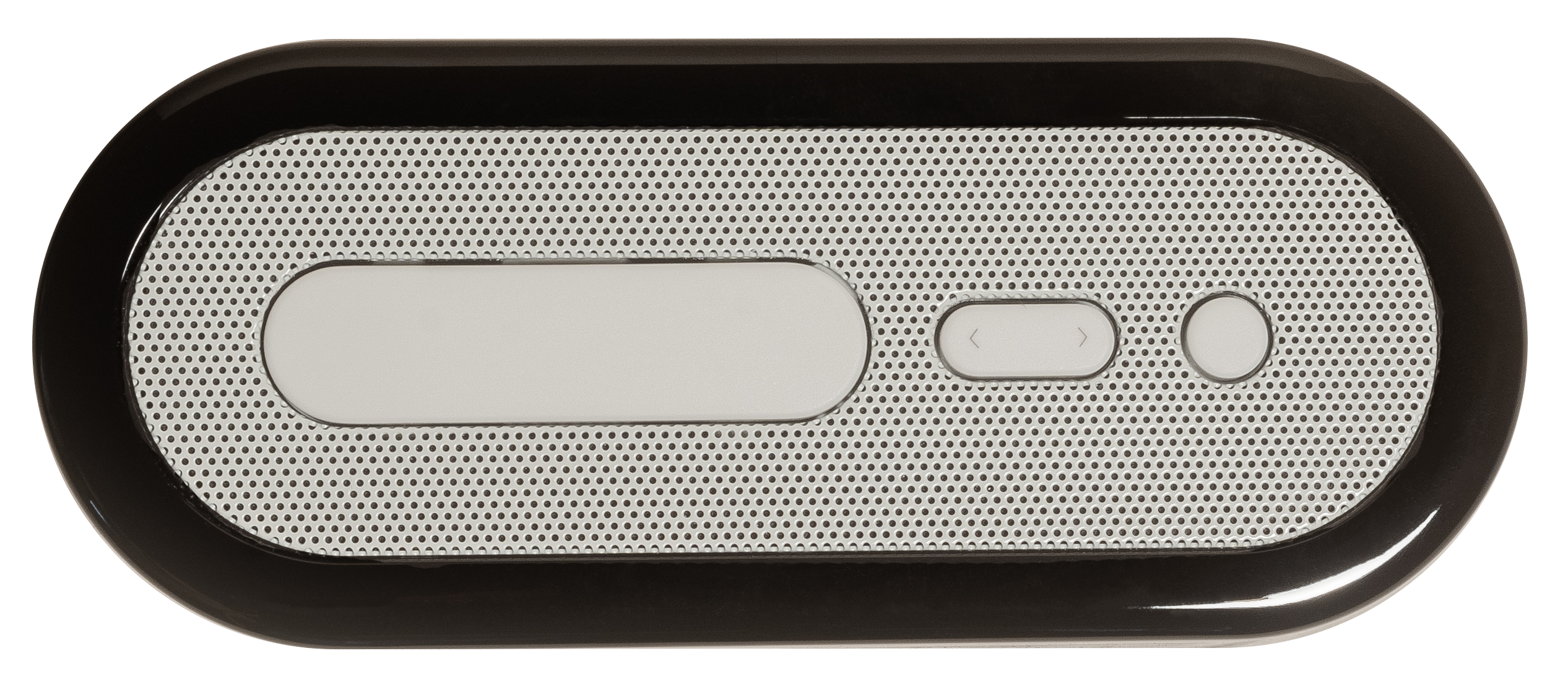
Want to ditch the smart phone? No worries! All of Loftie Clock’s features are accessible via the buttons on the clock. Here are the basics of Loftie’s buttons.

Learn more about how to navigate your Loftie below and check out our Tips & Tricks to learn about shortcuts and how to make the most of your Loftie!
Snooze Button
The snooze button turns the nightlight on and off when you’re viewing the clock. Hold the button to activate blackout mode (push any other button to exit). When navigating the menus you can use the snooze button to go back one menu level.
Arrow Buttons
Push either arrow button to bring up and navigate the main menu. Hold either arrow button to jump to the volume settings.
Main Button
The main button is used to select menu items. It can also be used to pause or play local content when viewing the clock. Holding the main button for ten to 15 seconds will turn Loftie on/off.
Settings
The Settings menu contains everything you need to customize Loftie for your nightstand, including:
-
Volume
-
Alarm Settings
-
Brightness
-
Nightlight
-
Bed Signal
-
Sleep timer
-
Get a code
-
Set Timezone
-
Set Timer Mode
-
Offline Mode
-
Forget WiFi
-
Restart